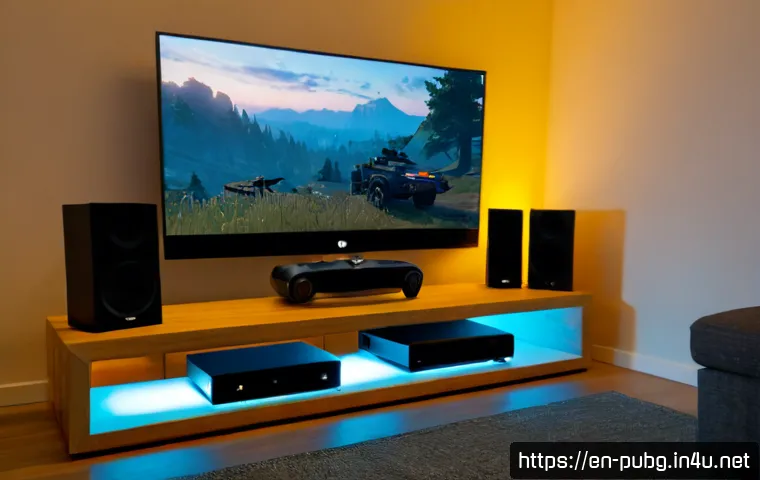
For smoother PUBG on Xbox, start with Game Mode, stable network conditions, and small controller adjustments before buying anything. A gaming monitor, headset, or accessory can be useful, but only after you identify the actual weak point in your setup.
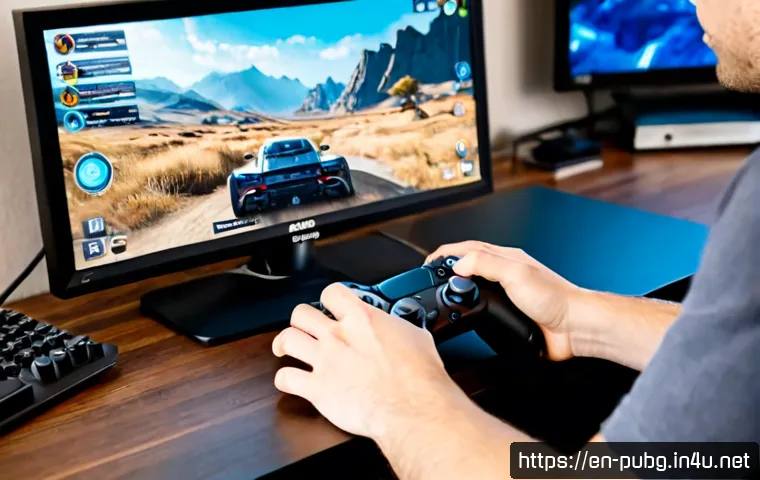
Game Mode reduces unnecessary display processing, while wired Ethernet can avoid some Wi-Fi interference. Test HDR carefully if dark interiors become harder to read.
For many players, a working TV in Game Mode is enough; a monitor makes more sense when desk distance, refresh support, and competitive priorities align.
The best upgrade is not always the most expensive one—it is the one that addresses a limitation you can notice consistently.
At a Glance
- Enable Game Mode on your TV or monitor before changing advanced gear or controller settings.
- Prioritize stable network conditions, ideally wired Ethernet when practical, before blaming aim settings.
- Test HDR, VRR, sensitivity, and audio changes one group at a time so you know what helped.
| Option | Who Benefits Most | What to Check First | When Not to Buy or Change |
|---|---|---|---|
| Game Mode | Nearly every TV or monitor player | Whether image processing is reduced | If it is already enabled and the display feels responsive |
| HDR | Players with a compatible display who prefer richer highlights and shadows | Dark-area visibility after calibration | If dark scenes become harder to read |
| VRR | Players with compatible Xbox, display, connection setup, and system settings | Full compatibility across the setup | If one part of the setup does not support it |
| Wired Ethernet | Players dealing with possible wireless interference | Whether a cable route is practical | If the issue is server-side or unrelated to Wi-Fi |
| Gaming Monitor | Competitive desk players who sit close to the screen | Game Mode, refresh support, size, and connection features | If a current TV already feels responsive and fits the room |
| Gaming Headset | Players who need clearer directional cues | Comfort, positional clarity, and mix controls | If the current audio setup already provides usable direction cues |
Start Here: The Settings That Usually Matter Most
Begin with the changes that cost nothing and are easiest to reverse. PUBG performance and display features can vary by Xbox model, game update, region, and connected display, so the goal is not to copy a universal “best” preset. The goal is to remove avoidable delay, reduce distractions, and make your own setup easier to control.
Use Game Mode and Reduce Unnecessary TV Picture Processing
Turn on Game Mode in the TV or monitor menu if it is available. It is designed to reduce image-processing delay compared with heavily processed picture modes. Avoid judging responsiveness while motion smoothing, extra sharpening, or other picture enhancements are active; these modes can change how the image feels even if it looks more dramatic.
Game Mode is usually the first display setting worth checking because it does not require a new gaming monitor. If the picture looks different afterward, adjust only the settings needed for comfortable visibility rather than turning every enhancement back on.
Prioritize Stable Network Conditions Before Changing Sensitivity
If matches feel inconsistent, separate a connection problem from an aim problem. A wired Ethernet connection is generally less susceptible to wireless interference than Wi-Fi, although it cannot remove server-side issues. Before changing stick sensitivity, pause background downloads and consider whether other household devices are using the network heavily.
Do not assume every stutter, delay, or packet-loss symptom has one cause. Network conditions, the connected display, Xbox hardware, and game-side conditions can all matter.
Change One Setting Group at a Time and Test in Similar Matches
Use a simple testing routine: change the display group, controller group, audio group, or network group—never all of them together. Then play in similar situations and pay attention to tracking, close-range turns, dark interiors, and directional sound. If a change makes the game worse, returning to the previous setting is much easier when you have changed only one variable.
Display Settings: TV, Monitor, HDR, and Refresh Features Compared
A better display can improve comfort and clarity, but it is not an automatic PUBG performance upgrade. Compare features that match your play position and Xbox compatibility rather than buying based on a single specification.
When Game Mode Is Enough for Most Players
For casual couch play, a TV with Game Mode can be a sensible long-term setup. A larger screen is comfortable at a greater viewing distance, and there may be little reason to replace a working TV if it feels responsive, the picture is clear, and its supported features match your Xbox setup.
Check the TV’s Game Mode options before shopping for a replacement. A familiar screen with reduced processing can be more valuable than a new display with features your console or connection setup cannot use.
HDR Calibration and Dark-Area Visibility Trade-Offs
HDR can improve highlight and shadow presentation on compatible displays. In PUBG, however, poor calibration may make darker areas harder for some players to read. If indoor corners, shaded terrain, or low-light scenes become less clear, compare HDR on and off in similar conditions.
There is no reason to keep HDR enabled simply because the display supports it. Choose the presentation that gives you comfortable, repeatable visibility on your own screen.
When VRR and Higher-Refresh Displays May Be Worth Paying For
Variable Refresh Rate support depends on the Xbox console, display, connection setup, and enabled system settings. A gaming monitor with VRR or higher-refresh support is worth researching when you play at a desk, sit close to the screen, and want to compare compatible display features carefully.
Before purchasing, confirm the monitor’s connection options, Xbox compatibility, Game Mode behavior, and whether its supported features can actually be enabled in your setup. Do not treat a higher refresh specification as a guaranteed improvement for every Xbox model or PUBG version.
TV Versus Gaming Monitor: Value Factors Beyond the Price Tag
A TV often suits larger rooms, couch distance, and shared viewing. A gaming monitor often suits close desk play, compact screen sizes, and buyers focused on refresh support and responsive display features. Compare input responsiveness, screen size, viewing distance, supported refresh features, and the value of replacing equipment that already works.
Compare display features before replacing a working TV. The right choice depends more on how and where you play than on marketing labels alone.
Controller, Aim, and Audio Setup Without Overcorrecting
Controller comfort and audio clarity affect decision-making during matches, but aggressive changes often make established muscle memory worse. Keep adjustments gradual.
Build Sensitivity Around Comfort, Tracking, and Recoil Control
Stick sensitivity is personal. Increase or reduce it in small steps, then test normal turns, target tracking, and recoil control separately. A sensitivity that feels fast in open terrain may be difficult to control in close fights, while a very slow setup may feel restrictive when reacting quickly.
Do not copy another player’s exact values without testing. Your controller condition, seating position, display size, and preferences all affect what feels manageable.
Dead Zones and Button Layout: Test Carefully After Each Change
If available on your Xbox and controller setup, test dead-zone and button-layout changes carefully. Make one adjustment, check for unintended movement or discomfort, and then play enough to judge it. A controller accessory can be worth comparing if button access or hand comfort is the real limitation, but it cannot guarantee better aim.
Headset Features That Matter More Than Marketing Claims
Headphone audio can help players distinguish directional cues, but positional clarity varies by headset, mix settings, and individual hearing. When comparing a gaming headset, prioritize comfort, reliable connection behavior, clear directional presentation, and useful volume or chat controls over broad marketing claims.
A headset upgrade is most sensible when your current speakers or headphones make it difficult to separate nearby movement from general game noise. Check the product page for Xbox connection compatibility and available audio controls before purchasing.
Connection and Console Checks for More Consistent Matches
Consistency often comes from removing simple setup issues rather than chasing a single “lag fix.” Work through the checks below before assuming your console needs replacing.
Ethernet Versus Wi-Fi for Multiplayer Stability
When practical, test Ethernet instead of Wi-Fi. Wired networking is generally less susceptible to wireless interference. It cannot solve server-side problems, but it can be a useful comparison point if your connection feels inconsistent.
Router Placement, Background Downloads, and Household Network Traffic
If Wi-Fi is necessary, consider router placement and potential sources of interference. Also check for background downloads and heavy household network traffic during play. Test at a similar time of day when possible; changing the network environment and controller sensitivity together makes results difficult to interpret.
Storage Space, System Updates, and When a Reinstall May Be a Last Resort
Keep your Xbox system and PUBG installation updated when updates are available. Check available storage space and avoid treating a reinstall as the first answer to every performance concern. Reinstalling may be a last-resort troubleshooting step after you have checked display mode, network conditions, and current updates.
Settings by Player Situation
Casual Couch-and-TV Setup
Enable Game Mode, test HDR only if it remains comfortable in dark areas, and use your TV at the intended viewing distance. A headset may offer more practical value than a monitor if you mainly want clearer directional cues without changing the room setup.
Competitive Player Using a Desk Monitor
Confirm Game Mode, console display settings, monitor connection support, and VRR compatibility where applicable. Keep sensitivity changes gradual. A gaming monitor can be a reasonable comparison purchase when close viewing and supported refresh features matter to you.
Older Xbox Setup With a Limited Upgrade Budget
Start free: Game Mode, network cleanup, background-download checks, and one-at-a-time controller testing. Do not assume a premium display or controller accessory will overcome every limitation of older hardware. A wired connection or comfortable headset may provide better value depending on the real issue.
Newer Xbox Setup Deciding Whether a Display Upgrade Adds Real Value
First confirm what your current TV supports and what features your Xbox can use with the existing connection setup. If the TV already has responsive Game Mode and meets your needs, an upgrade may not be urgent. If you play close at a desk and want compatible VRR or refresh features, compare gaming monitor specifications carefully.
Selection Criteria and Comparison Summary
Use this short decision check before spending on PUBG Xbox gear:
- Is Game Mode enabled on the current TV or monitor?
- Have you tested HDR on and off for dark-area visibility?
- Can Ethernet be tested before replacing network hardware?
- Does your Xbox, display, cable or connection setup support the feature you want?
- Are you a couch player who benefits from screen size, or a desk player who values monitor features?
- Is your current limitation display response, audio direction, controller comfort, or network stability?
For a display, headset, controller accessory, or console-related upgrade, review the product’s compatibility details and connection requirements on the relevant product page before making a decision.
Closing Thoughts
The strongest PUBG Xbox setup usually starts with simple checks, not a shopping cart. Game Mode, stable network conditions, and careful sensitivity testing can reveal whether an upgrade is actually needed. If you do buy gear, choose the category that addresses a specific limitation you have tested. That approach keeps your setup simpler and your spending more intentional.
Useful Things to Know
Game Mode is often the best first display adjustment. HDR is a preference and calibration decision, especially in darker game areas. VRR requires compatibility across the console, display, connection setup, and system settings. A headset may improve directional awareness, but results depend on the headset, audio mix, and the listener.
Important Notes
PUBG options, Xbox display features, performance behavior, and compatibility can change by console model, game update, region, and connected equipment. No display, headset, controller, cable, or network change can guarantee a measurable improvement for every player. Test your own setup and verify current feature availability before purchasing.
Frequently Asked Questions
Q1. What Xbox settings should I change first for smoother PUBG gameplay?
A1. Start with Game Mode on your TV or monitor, then check for stable network conditions and pause background downloads. Change controller settings gradually afterward so you can tell whether responsiveness or connection consistency was the main issue.
Q2. Is a gaming monitor worth buying for PUBG on Xbox, or is Game Mode on a TV enough?
A2. Game Mode on a TV is enough for many players, especially for couch gaming at a larger viewing distance. A gaming monitor is more worth comparing for close desk play, supported refresh features, and a setup where Xbox, monitor, connection, and system settings are compatible.
Q3. Should I use HDR for PUBG on Xbox if dark areas are difficult to see?
A3. Test HDR both on and off. HDR can improve highlight and shadow presentation on compatible displays, but poor calibration may make dark-game visibility harder for some players. Keep the option that gives you clearer, more comfortable visibility in similar matches.